
How to stream in 4K at home in Canada
To stream in 4K at home you need every link in the chain to handle it: a title that was produced or mastered in 4K, an app and a device that can decode it, an HDMI port and cable fast enough to carry it, a TV set up to accept it, and a connection steady enough to hold it. A 4K television on its own guarantees none of that. Plan for roughly 15 to 25 Mbps per 4K stream, prefer a cable over wifi when you can, and check what the screen is actually receiving rather than trusting the label on the box.

In this article
- What 4K actually means
- Why a 4K TV is not enough on its own
- Internet speed and data per hour
- Wifi or Ethernet: the better way to stream in 4K
- HDMI ports and cables
- TV settings that block 4K
- Is your streaming device 4K ready?
- Why some channels and titles stay in HD
- How to check what is really playing
- Try 4K on your own line before you pay
- Frequently asked questions
What 4K actually means
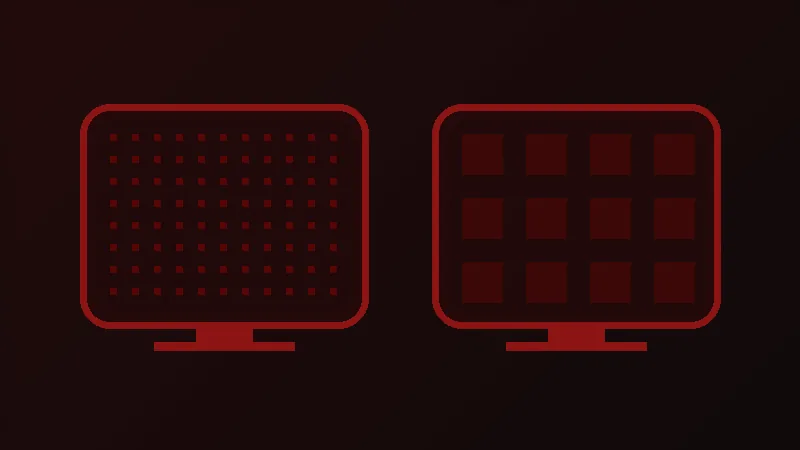
On a consumer television, 4K means a picture 3,840 pixels wide by 2,160 tall, often sold as UHD or Ultra HD. That is twice the width and twice the height of 1080p, so four times as many pixels, a little over eight million in all. Cinemas use a slightly wider 4,096 by 2,160 format, but at home the two are treated as one. The Wikipedia entry on 4K resolution lists the formats.
More pixels only help if they carry real detail. A sharp 1080p picture scaled up by a good television can beat a heavily compressed 4K one, so for a good 4K picture the bitrate and the source matter as much as the spec sheet.
HDR is a separate feature
HDR, or high dynamic range, is about brightness and colour rather than resolution: bright highlights and deep shadows share a frame without one washing out the other. Common formats are HDR10, supported by almost every HDR set, HDR10+, which adjusts scene by scene, HLG, built for live broadcast, and proprietary formats. The TV, the device and the title must share one for HDR to switch on; otherwise the picture plays in standard range.
Why a 4K TV is not enough on its own
The narrowest section of a pipe sets the flow. If you want to stream in 4K, five things have to agree.
- Source. The channel or title has to be delivered in 4K. Most live television is still produced in HD, and nothing downstream can add detail that was never there.
- App. Some apps cap the resolution on certain devices, or offer 4K only in a setting you have to turn on.
- Device. Your stick, box or built-in TV system has to decode 4K video, usually in the HEVC or AV1 codec.
- HDMI link. Both ports and the cable between them need enough bandwidth.
- Connection. Your line and your home network have to deliver a steady stream for the whole programme, not just a fast burst on a speed test.
When any one falls short, the player quietly drops to a lower resolution without saying why, so 4K playback waits until you find the weak link. Check them one at a time.
Internet speed and data per hour
There is no single official figure: each streaming service publishes its own recommendation, and they vary. Streaming services publish their own figures, and the ranges below are planning numbers drawn from those published recommendations. Treat them as planning numbers, not promises.
| Picture quality | Typical speed per stream | Approximate data per hour |
|---|---|---|
| SD (480p or lower) | About 1 to 5 Mbps | About 0.25 to 3 GB |
| HD (720p to 1080p) | About 2.5 to 8 Mbps | About 1 to 4 GB |
| 4K UHD | About 15 to 25 Mbps | About 7 to 15 GB, sometimes more |
The speed figure is per stream: if one person watches in 4K while someone else watches HD in the kitchen, the demands add up, so leave headroom above the total. Data adds up too. Three hours of 4K an evening can come to more than 600 GB over a month, which matters if your plan has a usage cap. With 4K most evenings, check your monthly allowance first.
Live channels are harder: a film buffers ahead, a live feed barely can, so a line that handles 4K films on demand can still stutter on live 4K.
Wifi or Ethernet: the better way to stream in 4K
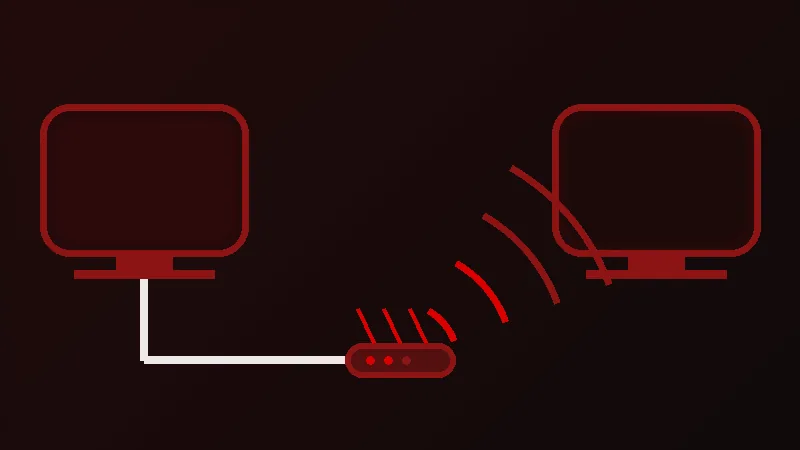
A wired connection is the safer way to stream in 4K, because it does not share the air with your neighbours’ networks or lose strength through walls and floors. If the router is in another room, a long cable, a powerline adapter or a mesh node with a wired port near the TV all work.
If wifi is the only option, join the 5 GHz band rather than 2.4 GHz, keep the router in the open rather than in a cabinet, and run a speed test from the television itself, because a reading taken on your phone says little about the TV’s own link. Many sticks have no Ethernet port; a small USB adapter often solves that.
HDMI ports and cables
To stream in 4K over HDMI, both ports and the cable must support the signal. HDMI 2.0 raised the bandwidth to 18 Gbit/s, enough for 4K at 60 frames per second, which covers almost all streamed video. Version 2.1 raised it to 48 Gbit/s and added higher refresh rates such as 4K at 120 Hz, which mostly matters for games.
For the cable, look for one certified as Premium High Speed (18 Gbit/s) or Ultra High Speed (48 Gbit/s). The HDMI Licensing Administrator explains that the Ultra High Speed cable arrived with the HDMI 2.1 specification. An old cable from a drawer may handle 1080p and then flicker or go black at 4K with HDR. Swapping it is cheap.
On the TV, not every HDMI input is equal. Some sets give full bandwidth on only one or two ports, often labelled 4K or UHD. Plug the streaming device into one of those.
TV settings that block 4K
Many televisions ship with HDMI inputs in a compatibility mode. The setting that unlocks the full signal is named differently on almost every brand: HDMI enhanced format, input signal plus, UHD colour or deep colour. Find it in the picture or external device settings and switch it on for the input your streaming device uses.
Then pick a movie, cinema or filmmaker picture mode rather than the bright store setting, and turn off motion smoothing if the picture looks oddly fluid.
Is your streaming device 4K ready?
Plenty of sticks and boxes look alike but differ inside. Before you buy one to stream in 4K, or if you are unsure about yours, open the manufacturer’s spec sheet and look for four lines: 4K or 2160p output, the HDR formats supported, HEVC and ideally AV1 decoding, and the HDMI version. A model sold as HD only will never output a 4K picture, whatever the line delivers. Our guides for setting up iptv on a Firestick in Canada and on Android TV boxes note where the 4K and non-4K versions of common devices differ, and if your television runs its own apps, the Samsung TV setup guide covers the built-in route.
Why some channels and titles stay in HD
This is the most common surprise, and rarely a fault. Much live television, news and older film is produced or delivered in HD, and no one can turn that into true 4K later. Even where a 4K feed exists, it is usually a separate channel or a separate version of the title. Being able to stream in 4K at home simply means you are ready when the source is. Our 4K IPTV service in Canada is built the same way: 4K where the source offers it, HD everywhere else.
The same is true of IPTV. Within our catalogue, part of the content is available in 4K and the rest in HD or full HD. We do not promise 4K on every channel, because no honest provider can. Where a channel or title is offered in 4K, check its details or label in the player before assuming the default feed is the sharpest one.
How to check what is really playing
A menu label says what a title can offer, not what your screen is getting. Three checks show whether you really stream in 4K.
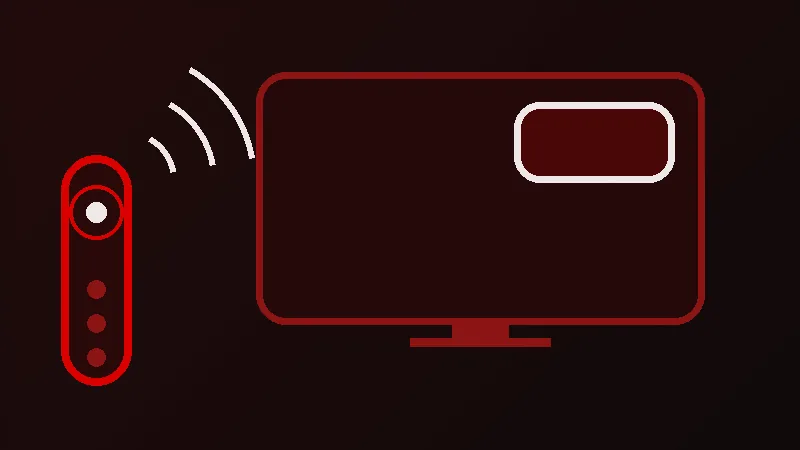
- The TV’s info banner. Press the info or display button on the remote while the video plays. Most sets show the incoming resolution, such as 3840 x 2160 or 2160p, and often whether HDR is active.
- The player’s own overlay. Many player apps have a stream or media info option that shows the resolution and bitrate of the feed it is receiving.
- The device’s display settings. On a stick or box, the display menu shows the output resolution. If it reads 1080p, the device is capping everything before it reaches the TV, and changing it to 2160p or auto is the fix.
If the banner shows 4K but the picture looks soft, the feed is probably upscaled upstream, or the bitrate dropped with the connection. A 1080p reading means going back through the chain above. When the picture stops altogether, our page on iptv that is not working lists the checks in order.
Try 4K on your own line before you pay
The only reliable way to know whether you can stream in 4K at home is to try it on your own television, device and internet line. Ask on WhatsApp for our free trial, which needs no card, and play a few of the 4K titles while you run the checks above. If the picture holds, the chain works; if not, you know which link to fix before spending anything.
Plans start at CA$55 for one month, and twelve months cost CA$185 for one device. The plans and prices page sets out every option, and each order carries a 7-day money-back guarantee. Our WhatsApp support never closes; we reply as soon as we can, and that covers help getting 4K playback working on a given device.
Frequently asked questions
What internet speed do I need to stream in 4K?
Published recommendations vary by service, but most fall between about 15 and 25 Mbps for a single 4K stream. Leave headroom for other devices on the line; a steady connection matters more than a peak speed test.
How much data does 4K streaming use per hour?
Published figures range from about 7 GB to 15 GB per hour, depending on the service and the title, so daily viewing can reach hundreds of gigabytes a month.
Do I need a special HDMI cable for 4K?
You need one fast enough for the signal. A cable certified as Premium High Speed handles 4K at 60 frames per second, and an Ultra High Speed cable covers that and more. Older cables may fail with 4K and HDR even though they work with 1080p.
Why is my 4K TV only showing 1080p?
Something in the chain is limiting it: the source may be HD, the device output may be set to 1080p, the HDMI input may be in a compatibility mode, or the cable or connection may not keep up. Check the TV’s info banner and the device’s display settings first; you cannot stream in 4K while either reads 1080p.
Is wifi good enough to stream in 4K?
Often yes, on the 5 GHz band with a strong signal. Ethernet is more dependable, especially for live channels, because walls and nearby networks do not affect it.
Are all IPTV channels available in 4K?
No. Only part of any catalogue is produced in 4K, and most live television is still made in HD. You can only stream in 4K where a 4K feed exists at the source.
Can I test 4K before buying a plan?
Yes. Ask for the free trial on WhatsApp, with no card needed, and watch some 4K titles on your own TV and internet line. That shows whether your setup holds a 4K picture before you pay.
Ready to Start Streaming?
Get the best 4K IPTV experience in Canada with extensive channel lineup and lag free sports.
View Canadian Pricing Plans